Title: 2025 05 09 Proxy Server Intro
Created: 9 May 2025 Modified: 9 May 2025Description:
What is a Proxy Server?
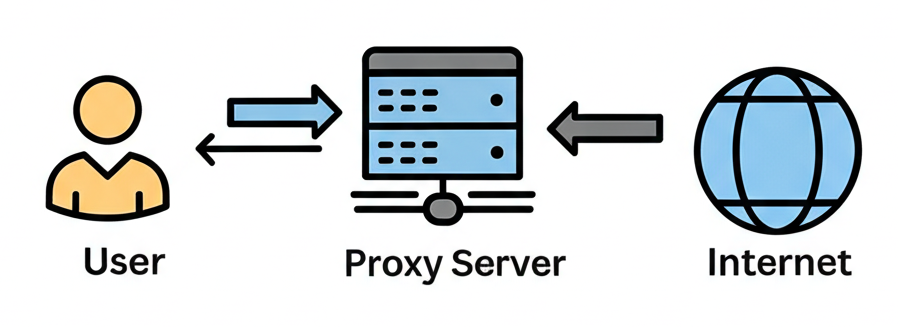
This document answers common questions about proxy servers and explains how they affect internet access within our organization. In simple terms, a proxy server acts as an intermediary between your computer and the internet. Instead of directly connecting to a website or online service, your request is first sent to the proxy server. The proxy server then forwards the request on your behalf and delivers the response back to you. Think of it like a translator: you speak to the translator (the proxy), and they communicate with the other party (the internet) for you.
Why Do We Use Proxy Servers?
Our organization uses proxy servers primarily to enhance security and manage internet access. Here are the key reasons:
- Security: Proxy servers act as a firewall, filtering out malicious traffic and protecting our internal network from external threats. They also mask your computer’s IP address, providing an extra layer of anonymity.
- Content Filtering: Proxies block access to specific websites or categories of websites (e.g., social media, gambling sites) to enforce company policies and improve productivity.
- Monitoring and Logging: Proxies monitor internet usage and log website visits for auditing and compliance purposes.
- Caching: Proxy servers can also store frequently accessed web content, which can help reduce bandwidth usage and improve website loading times.
How Proxies Affect You:
While proxies provide benefits, they can also cause issues for both regular users and developers:
For General Users:
-
Website Access Issues: You may be unable to access certain websites because the proxy server is blocking them. This could be due to content filtering policies (e.g., the company blocks social media) or technical issues with the proxy server itself.
-
Slow Internet Speeds: Proxy servers can sometimes slow down internet speeds, especially if the proxy server is overloaded, located far away, or if it’s inspecting all the traffic.
-
Website Functionality Issues: Some websites may not work correctly when accessed through a proxy server. This can manifest in several ways:
- Broken Images or Layout: Images might not load, or the website’s layout might be distorted. This is often because the proxy server is interfering with the way the website’s code (HTML, CSS, JavaScript) is being delivered to your browser.
- Forms Don’t Submit: You might be unable to submit forms on a website (e.g., a contact form, a login form). This can be due to the proxy server blocking certain types of data or interfering with the way the form data is being transmitted.
- Videos Don’t Play: Streaming video content might not play correctly, or might be very slow and choppy. This is because video streaming often requires a direct connection between your computer and the video server, and the proxy server can interfere with this connection.
- Interactive Elements Don’t Work: Interactive elements on a website (e.g., drop-down menus, buttons, animations) might not function as expected. This is often due to the proxy server interfering with the JavaScript code that powers these elements.
For Developers:
-
API Request Failures: Your application might fail to make API requests to external services. This can happen for a few reasons:
- Proxy Blocking: The proxy server might be blocking the specific API endpoint your application is trying to access due to security policies or content filtering [1].
- Missing Proxy Configuration: Your application might not be configured to use the proxy server. Many development tools and libraries require explicit proxy settings [2]. Organization IT infrastructure teams often configure proxy settings at the operating system level, but individual applications may still need to be configured separately [2].
-
SSL Certificate Errors: You might encounter SSL certificate errors when trying to access HTTPS resources. This can occur if the proxy server is intercepting and re-signing SSL certificates, and your development environment doesn’t trust the proxy’s certificate [1].
-
Build and Package Manager Issues: Tools like
npm,pip, ormavenmight fail to download dependencies or publish packages. This is often due to the proxy server interfering with the package manager’s network requests [2]. Again, this is often due to missing proxy configurations for these specific tools.
To summarize the reasons, developers often face these issues because:
- The proxy server blocks content required by the development tools or APIs [1].
- The development tools or applications are not configured to use the proxy server, even if the operating system is [2].
Troubleshooting Proxy Issues
This document shares my experiences troubleshooting proxy issues. I’ve found that problems can arise at both the operating system and application levels. The OS-Level Troubleshooting section covers the issues I’ve encountered as a general user, while the Application-Level Troubleshooting section details what I’ve learned as a developer configuring applications to work with proxies.
I. OS-Level Troubleshooting
This section covers the proxy-related issues I’ve encountered as a general computer user.
-
Purpose: To ensure the operating system is correctly configured to use the proxy server. This is a prerequisite for applications to successfully use the proxy.
-
Checking Proxy Settings:
-
Windows:
- Open Settings (Windows key + I).
- Go to Network & Internet > Proxy.
- Check if “Automatically detect settings” is enabled or if a specific proxy address and port are configured.
-
Linux:
- Open a terminal.
- Check for the existence of environment variables:
echo $http_proxyecho $https_proxyecho $no_proxy
- If these variables are set, they will contain the proxy address and port (e.g.,
http://proxy.example.com:8080).no_proxycontains a comma-separated list of domains or IP addresses that should bypass the proxy.
-
-
Setting Proxy Settings (If Necessary):
-
Windows:
- Open Settings (Windows key + I).
- Go to Network & Internet > Proxy.
- You can either:
- Enable “Automatically detect settings” (if your network provides automatic proxy configuration).
- Manually configure the proxy address and port under “Manual proxy setup”.
-
Linux:
- Open a terminal.
- Edit your shell configuration file (e.g.,
~/.bashrcor~/.zshrc):nano ~/.bashrc(ornano ~/.zshrc)
- Add the following lines (replace with your actual proxy address and port):
export http_proxy=http://proxy.example.com:8080 export https_proxy=http://proxy.example.com:8080 export no_proxy="localhost,127.0.0.1,*.example.com" # Optional: Bypass the proxy for these addresses - Save the file and reload your shell configuration:
source ~/.bashrc(orsource ~/.zshrc)
-
II. Application-Level Troubleshooting
This section shares my experiences as a developer configuring applications to work with a proxy server.
-
Purpose: To configure individual applications to use the OS-level proxy settings or to override them with specific proxy settings.
-
General Testing:
-
Use
curlorwgetto test basic connectivity through the proxy. If these tools are not installed, you may need to install them using your operating system’s package manager (e.g.,apt,yum,brew).curl -v http://www.example.com(The-voption provides verbose output, showing the proxy being used)wget http://www.example.com
-
-
Language-Specific Configuration:
-
Java:
- Setting Proxy Properties: You can set proxy properties when running your Java application:
java -Dhttp.proxyHost=proxy.example.com -Dhttp.proxyPort=8080 -Dhttps.proxyHost=proxy.example.com -Dhttps.proxyPort=8080 YourApp.jar - Maven: Add proxy settings to your
settings.xmlfile (usually located in~/.m2/):<settings> <proxies> <proxy> <id>myproxy</id> <active>true</active> <protocol>http</protocol> <host>proxy.example.com</host> <port>8080</port> <!-- <username>proxyuser</username> <password>somepassword</password> --> <nonProxyHosts>localhost|127.0.0.1|*.example.com</nonProxyHosts> </proxy> </proxies> </settings> - Gradle: Add proxy settings to your
gradle.propertiesfile (usually located in~/.gradle/):systemProp.http.proxyHost=proxy.example.com systemProp.http.proxyPort=8080 systemProp.https.proxyHost=proxy.example.com systemProp.https.proxyPort=8080 systemProp.http.nonProxyHosts=localhost|127.0.0.1|*.example.com
- Setting Proxy Properties: You can set proxy properties when running your Java application:
-
Python:
- Using the
requestslibrary:import requests proxies = { 'http': 'http://proxy.example.com:8080', 'https': 'http://proxy.example.com:8080', } try: response = requests.get('http://www.example.com', proxies=proxies) response.raise_for_status() ## Raise HTTPError for bad responses (4xx or 5xx) print(response.text) except requests.exceptions.RequestException as e: print(f"Error: {e}") - Environment Variables: The
requestslibrary (and many other Python libraries) will automatically use thehttp_proxyandhttps_proxyenvironment variables if they are set.
- Using the
-
pip: You can configure pip to use a proxy by setting environment variables or using command-line options.
- Environment Variables: Pip respects the
http_proxy,https_proxy, andno_proxyenvironment variables. These can be set as described in the OS-Level Troubleshooting section for Linux. - Command-line options:
bash pip install --proxy http://proxy.example.com:8080 <package_name> - Configuration file: You can configure pip permanently by creating or modifying the pip configuration file (usually located at
~/.pip/pip.confon Linux/macOS or%APPDATA%\pip\pip.inion Windows):ini [global] proxy = http://proxy.example.com:8080
- Environment Variables: Pip respects the
-
Important Considerations:
- Security: Never disable the proxy server unless you have a good reason to do so and understand the risks involved.
- Company Policy: Always follow your organization’s policies regarding internet usage and proxy server configuration.
- Documentation: Keep a record of the proxy settings and configurations that you use, in case you need to refer to them later.
- Communication: Communicate any persistent proxy-related issues to your IT support team so they can investigate and resolve them.
By understanding how proxy servers work and following these troubleshooting steps, you can minimize the impact of proxy-related issues and stay productive.